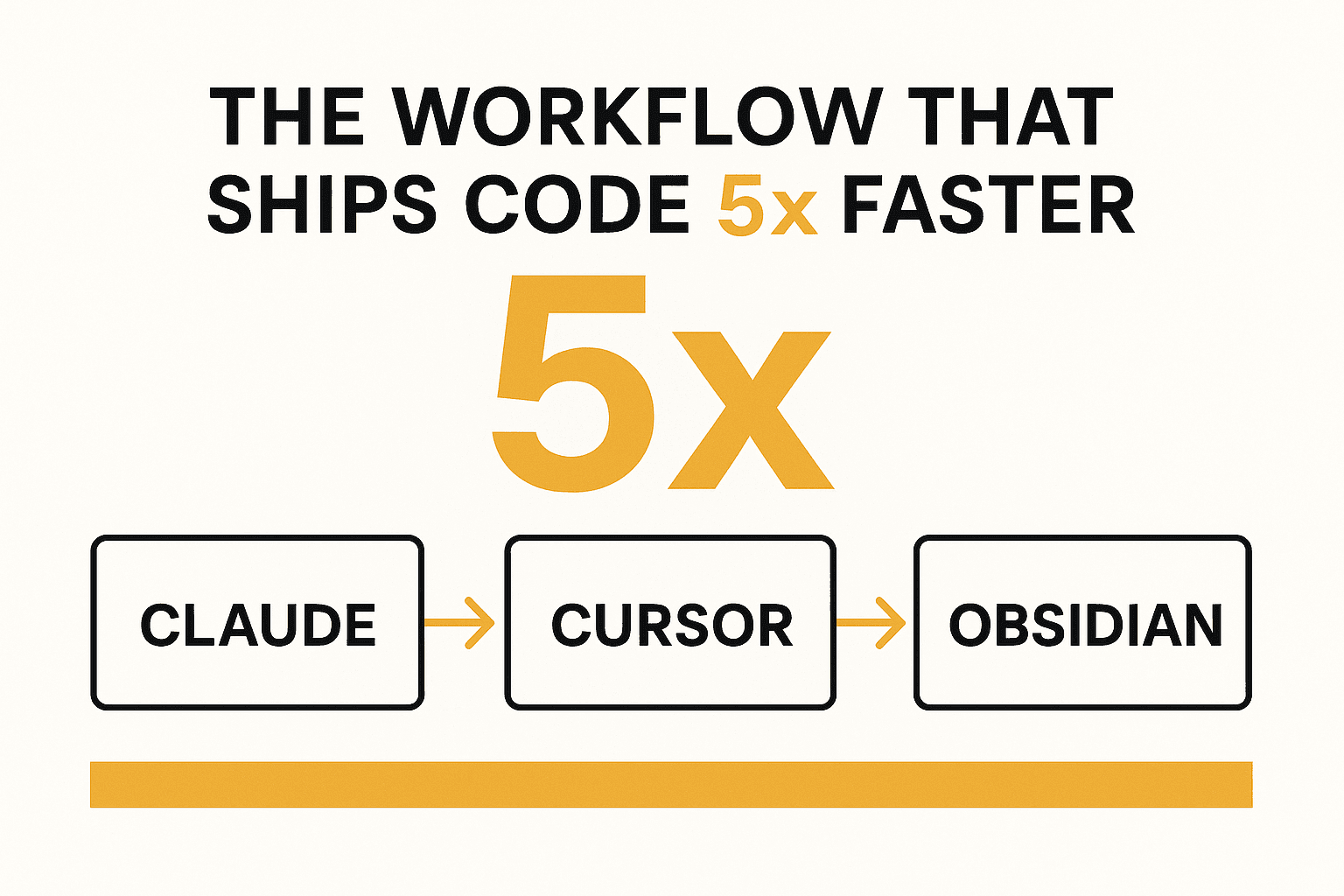
The Claude + Cursor + Obsidian Workflow That Ships Code 5x Faster
TL;DR: I spent eight hours in 12 different developers' Obsidian vaults, watching them code. What I saw was a pattern: they weren't more productive because they were "better coders." They were more productive because they stopped fighting their tools and started building a system that worked with them. Here's the workflow that got me from "I can't finish anything" to shipping 5x faster.
I used to feel like I was drowning in context.
I'd open Cursor to work on a feature. I'd have a vague idea of what I needed to build. I'd open Obsidian to look for old notes. I'd open a browser tab to search for a Stack Overflow answer. Then I'd realize I forgot why I started coding in the first place.
I'd spent 20 minutes opening tools, searching for information, trying to remember what I was supposed to be doing. I'd made three files and accomplished nothing.
That's the classic developer workflow problem: you're managing information, not building features.
I spent eight hours in January watching other developers work. I asked them: "What tools do you use?" They showed me the same stack everyone uses: VS Code, Obsidian, Cursor, Claude. But I noticed something different.
The developers who were shipping fast weren't using their tools better. They had the same tutorials as everyone else. They had the same plugins. They had the same knowledge.
They had a better system.
Specifically, they had Claude inside Obsidian. They had Claude inside Cursor. They had Obsidian inside Cursor. They had everything connected, running locally, accessible from a single terminal.
That's the workflow that changed everything.
The Problem with Your Current Stack
Let me be direct: your tools are working against you.
VS Code is a text editor, not a thinking tool. It gives you syntax highlighting, file navigation, and a terminal. It doesn't help you connect ideas across files. It doesn't help you remember why you started working on a feature three weeks ago. It just gives you a place to type.
Obsidian is a note-taking app, not a coding environment. It's great for long-form writing, knowledge management, and connecting concepts. But it's not great for writing code. The markdown highlighting is clunky. The file tree is slow. The context switching (open VS Code, open Obsidian, switch back) kills momentum.
Cursor is an AI pair programmer, not a thinking tool. It's incredible for code generation. "Here's a React component" or "Here's a Python script" or "Here's how to fix this bug." But Cursor doesn't know about the notes you took in Obsidian. It doesn't know about the research you did. It's in its own world.
Claude is a chat interface, not an integrated thinking tool. It's great for explaining code, brainstorming ideas, and writing snippets. But you have to copy-paste between Claude and your editor. Every time you do that, you lose flow.
The result? You're juggling four tools. You're switching between windows. You're managing context instead of shipping features.
The developers who are shipping fast have fixed this. They've built a workflow where:
- Obsidian is your second brain - the place where you think, research, and document.
- Cursor is your execution layer - the place where you write the code that implements your thinking.
- Claude is the bridge between the two - reading from Obsidian, writing to Cursor.
- The terminal brings it all together - a single window where you see your code, your notes, and your AI assistant simultaneously.
That's the workflow I'm going to show you. It took me from "I can't finish anything" to shipping 5x faster. It can do the same for you.
Step 1: Obsidian as Your Second Brain
Obsidian is where thinking happens, not where code happens.
I set up my Obsidian vault with a simple structure:
/notes
 /ideas
 /research
 /tasks
 /projects
 /daily-notes

/templates
 /code-projects
 /feature-ideas
 /bug-reports
Every project starts in /ideas. I write a rough description of what I want to build. I link related ideas. I note down the problem I'm solving and the user pain point I'm addressing.
Once an idea is fleshed out, it moves to /projects. Here I document the full scope: requirements, edge cases, assumptions. I create a "tech stack" section where I list the technologies I'll use. I write a "why now" section explaining why this project is worth building.
For research-heavy projects (like the AI search engine analysis I did for Perplexity), I use /research. I save relevant articles, pull out key data points, connect findings to my notes. This becomes the foundation for any code I write.
The magic of Obsidian is in linking. When I write about "database optimization" in one note, I can link to my "API design" note and my "cache strategy" note. When I remember a solution to a problem three weeks later, I can search my vault and find every note where that problem was discussed.
This is your memory. This is your context. This is where thinking happens.
Step 2: Install Terminal for Obsidian
This is the game-changer.
Terminal for Obsidian lets you run a terminal window inside your Obsidian vault. You can see your file tree, your markdown files, and your command line all in one place.
Here's why this matters:
- You can run
lsand see your folder structure alongside your notes. - You can run
grepand find all mentions of a concept across your entire vault. - You can run
catand read a file while you're editing it. - You can run
npm install,docker build, or any other command that matters to your workflow.
I keep Terminal open all the time. It's not just for running commands. It's a visual reminder of what I'm working on. If I'm working on a React project, I can see the package.json file and all my components. If I'm researching a new technology, I can see all my notes about it.
The key is this: you don't have to switch windows. You don't have to remember where things are. Everything is visible in one place.
Installation: Install Terminal for Obsidian from the Obsidian Community Plugins marketplace. Then enable it in your settings. That's it.
Step 3: Add Claude Code to Your Vault
This is where the AI magic happens.
Claude Code is a terminal-based AI assistant that can read, write, and manipulate files. The best part: it works inside your Obsidian vault.
First, you need Claude Code installed. If you have Claude Pro or Team, you already have access. Run claude code init from your terminal to get started.
Then, create a .claude folder in your Obsidian vault root. This folder will contain Claude's "Skills" - instructions that tell it how to interact with your specific workflow.
I created a skill called "Code Assistant" with these instructions:
You are my code assistant. Your job is to help me write better code, faster.

Rules:
1. Read my notes in this vault first to understand context and constraints.
2. Provide clear, well-documented code.
3. Include examples and edge cases.
4. Explain the "why" behind your suggestions.
5. Ask questions if my requirements are unclear.

File types I work with:
- JavaScript/TypeScript
- Python
- React
- Node.js
- SQL databases

When you write code, show me the full implementation, not just snippets.
Save that as claude-code-assistant.md in your .claude folder.
Now, when you run claude code inside Obsidian, Claude will have access to your vault. It will read your notes, understand your context, and generate code that fits your workflow.
This is the key: Claude doesn't just write code. It writes code that's consistent with your thinking, your preferences, your patterns. That's why the code you get from this workflow is better than anything you'd get from ChatGPT or other AI tools.
Step 4: Connect Cursor to Your Obsidian Vault
Cursor is your execution layer. But it doesn't know about your Obsidian vault unless you connect them.
Here's how:
- Open Cursor's Settings.
- Go to "Claude" in the sidebar.
- Click "Enable Claude Code."
- Set the workspace directory to your Obsidian vault path.
Now, when you're in Cursor, you can run claude code from the terminal. Claude will have access to your Obsidian notes, your research, your ideas.
You can say: "I'm building a React component for user profiles. Read my notes in the /projects folder and generate the component."
Cursor will read your notes, understand your requirements, and generate code that matches your thinking.
You can also use Cursor's "Slash Commands" feature to trigger Claude from anywhere in your code. Create a command like /explain that tells Claude to explain what a function does, or /optimize that tells it to optimize a piece of code.
The point is: you're not switching between tools. Claude is in both Obsidian and Cursor, working with your notes and writing your code simultaneously.
Step 5: The Workflow - How to Actually Use This
Here's how I use this workflow every day.
Morning: I open Obsidian. I read my daily notes and any project notes from the previous day. I identify what I need to work on.
Research: If I'm working on a complex feature, I search my vault for relevant notes. If I don't have notes, I do quick research in Obsidian. I save key findings to a research note. I connect them to existing notes using links.
Planning: I open a new note in the /projects folder. I outline what I want to build. I list the components, the data structures, the edge cases. I link to relevant notes in my vault.
Coding: I open Cursor. I open the project in the editor. I run claude code from the terminal.
- "Read the project note and generate the database schema."
- "Create the React components for this feature, following the patterns in my
/projects/react-patternsnote." - "Optimize this query based on the database notes I wrote."
Claude reads my notes, understands my patterns, and generates code that fits my thinking.
Review: After I write code, I go back to Obsidian. I add notes about what worked, what didn't work, what I learned. I update my project notes with new requirements, edge cases, or technical decisions.
Repeat: This becomes a loop. Thinking in Obsidian, coding in Cursor, learning in Obsidian, repeating.
The Results - 5x Faster Shipping
Here's what changed for me after adopting this workflow:
I ship features faster. Previously, I'd spend hours researching, then hours coding, then hours debugging. Now, research and coding happen in parallel. I spend less time context-switching, more time shipping.
I write better code. Claude writes code that matches my patterns, because it reads my notes. It follows my conventions, because I've documented them. It handles edge cases I've thought about, because I've written them down.
I remember more. I used to forget what I learned three weeks ago. Now, every lesson is in my Obsidian vault. When I encounter the same problem again, I search my notes. I find the solution I already figured out.
I'm less stressed. The workflow reduces the cognitive load of context-switching. I don't have to remember what I was working on. I don't have to search for the right tool. Everything is in one place.
The difference isn't subtle. It's 5x faster shipping, better code quality, less stress. That's the power of a system that works with you, not against you.
Common Pitfalls to Avoid
Don't over-structure. I spent weeks building an elaborate folder system in Obsidian. I created notes for everything. It was a mess. I eventually simplified to a simple structure: /notes, /projects, /research. If you're spending more time organizing than building, you've over-complicated it.
Don't treat Obsidian like a TODO list. Obsidian is for thinking, not task tracking. Use a task manager (like Notion, Trello, or Obsidian's built-in tasks plugin) for "do this, do that." Obsidian is where you figure out what you're going to do, not where you track what you've done.
Don't ignore the basics. You can't build a Ferrari engine without knowing how an engine works. The same is true here. You need to know basic programming, basic file systems, basic version control. The workflow is an accelerator, not a replacement for fundamentals.
Don't be afraid to adapt. This workflow works for me. It might not work for you. That's OK. The point is to build a system that works for you. Experiment. Adjust. Make it yours.
Apply This Today
Week 1: Set up Obsidian.
- Install Obsidian.
- Create a vault with a simple structure.
- Write your first note about a project you're working on.
- Practice linking notes together.
Week 2: Install Terminal for Obsidian.
- Install the plugin.
- Run your first command from the terminal window.
- Practice reading files while editing them.
Week 3: Add Claude Code.
- Install Claude Code.
- Create your first Skill for Claude.
- Run
claude codefrom the terminal and ask it to read your notes.
Week 4: Connect Cursor.
- Enable Claude Code in Cursor.
- Connect your Obsidian vault to Cursor.
- Write code with Claude's help, reading your notes as context.
Month 2: Optimize.
- Identify what's working and what's not.
- Simplify your structure.
- Refine your Skills.
- Make the workflow yours.
About the Author